
Available Lessons
Resolving hotkey conflicts on webpages
Introduction
Some popular websites such as YouTube and Facebook include single letter keyboard commands, called accesskeys, to help keyboard users interact with their website. However, these keystrokes can conflict with SuperNova and Dolphin ScreenReader keyboard commands. Below you will learn how you can resolve this conflict.
Reading time: 5 minutes approx.
Definition of web shortcut keys (accesskeys)
Website developers can implement shortcut keys to enable keyboard users to better access and interact with their webpages. These shortcut keys are referred to as accesskeys. For example, on YouTube you can press K to pause and play a video.
In general, it is recommended that web designers Avoid using accesskeys unless there is a specific user need as localisation issues, browser issues, and keyboard conflicts are all possible.
You can learn more by visiting HTML Accesskey Attribute at W3Schools
SuperNova and Dolphin ScreenReader Dolphin Cursor Web Quick Navigation Keys
If you are familiar with using the keyboard to browse the Internet with SuperNova and Dolphin ScreenReader, then it is more than likely you are familiar with the Dolphin Cursor Web Quick Navigation Keys.
Quick Navigation Keys are designed to enable you to move the Dolphin Cursor directly to parts of a webpage, for example, you can press H to move to the next Heading on a webpage, press K to move to the next link on a webpage, press T to move to the next table on a webpage, etc. There are over twenty Quick Navigation Keys available and you can include the SHIFT key if you wish to move the Dolphin Cursor to the previous element on the webpage.
To learn more about Dolphin Cursor Quick Navigation Keys visit: Navigating busy webpages with the Dolphin Cursor.
Resolving the conflict
In some cases, you may be unaware of the purpose of the keyboard command in SuperNova or Dolphin ScreenReader. This can make it difficult to identify where to locate the keyboard command in the SuperNova and Dolphin ScreenReader Hotkey dialog box if you decide to remove or re-assign the hotkey.
One simple way to resolve this issue is to turn on "Key describe mode". In this mode, speech will echo the keys you press on the keyboard without passing them through to your application. This enables you to learn the layout of a keyboard, but also the category and name of the keyboard command.
To turn on Key describe mode, press CAPS LOCK + FORWARD SLASH. If you are using the Laptop Universal Hotkey Set, press CAPS LOCK + 2. Repeat The keypress to exit Key describe mode.
As an example, if you turn on "Key describe mode", and press LEFT CONTROL + SPACEBAR, speech says:
“Open control panel. Action. Left control plus spacebar.”
The three elements of this statement are:
- The command name: Open control panel.
- The Command set name: Action.
- The keypress: Left control plus spacebar.
You can use this information to find the hotkey in the "Hotkey" dialog box.
To do this:
- Open the SuperNova or Dolphin ScreenReader Control Panel.
- Open the "General" menu, open the "Keyboard settings" submenu, and select "Hotkeys" (ALT + G, K, H). The "Hotkeys" dialog box opens.
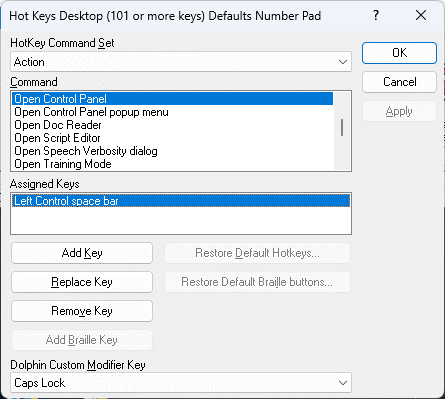
- Select the Command set.
- Select the Command.
- Select the hotkey and use the "Replace key" or "Remove key" buttons as required.
Summary
Here, you learnt about resolving hotkey conflicts. You can apply this knowledge to all applications where hotkey conflicts exist.
Quiz
Can you answer the following questions?
- When an app and SuperNova use the same keyboard command, the app has priority over SuperNova. Is this statement true?
- The Pass next key to application command enables you to perform multiple keyboard commands simultaneously without encountering a conflict. Is this statement true?
- Apps such as Microsoft Word often provide multiple ways to perform the same task. Is this statement true?
End of section
Before you move on, here are the answers to the quiz questions:
- False.
- False.
- True.
