

Course Outline
13. Maths support
Overview
Welcome to lesson 13 of 21 in the Trainer's Course. This lesson will explain how mathematics displayed within HTML is read using SuperNova and Dolphin ScreenReader.
Lesson objectives
After studying this lesson, you will be able to:
- Correctly state the SuperNova editions that support mathematics.
- Correctly state the industry standard markup language that enables screen readers to identify and read mathematical equations on webpages.
- Accurately state the steps users follow to customise their output settings for mathematics.
This lesson should take no more than twenty minutes to complete.
This lesson applies to:
- SuperNova Magnifier & Speech.
- SuperNova Magnifier & Screen Reader.
- Dolphin ScreenReader.
Mathematical equations made accessible
There are two components that make mathematical equations accessible:
-
MathML is a standardized markup language used to display mathematical equations on the web and is supported by the World Wide Web Consortium (W3C).
- MathCAT (Mathematics Capable Assistive Technology) is an open-source software library that converts mathematical notation into high-quality speech and braille.
SuperNova and Dolphin ScreenReader use the MathCAT engine to provide output for MathML in the Google Chrome and Microsoft Edge browsers. And with the use of the Dolphin Cursor, you can explore these equations in a structured and meaningful way.
MathML settings available in SuperNova and Dolphin ScreenReader
Note: SuperNova Magnifier & Speech reads mathematical content using Built-in default settings. It does not include advanced configuration options.
To explore the available options and set your default preferences:
- Open the SuperNova or Dolphin ScreenReader Control Panel.
- Go to the "General" menu (ALT + G).
- Select "Web Settings" and choose "MathML Settings".
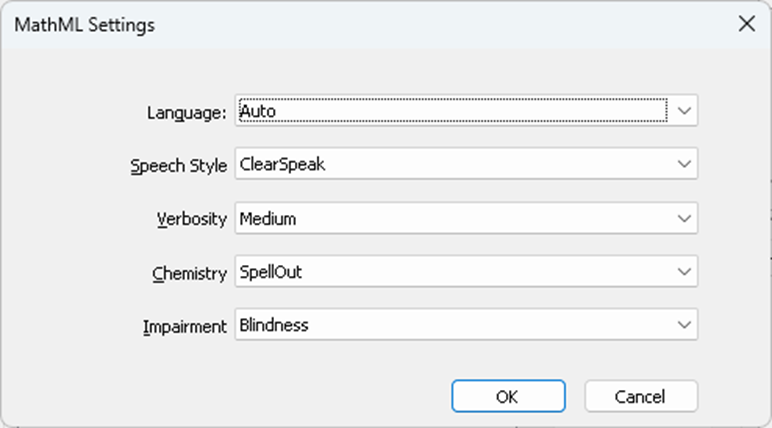
The key options are:
- Language. This value determines the default language to be used to speak the maths expression. Languages include English, Spanish, Italian, Indonesian, and Vietnamese. The default setting is "Auto". This setting will try to match the selected TTS voice language with the maths language setting. If the regional variant is not found among the speech rules, the speech will fall back to using the main language. If speech rules for the main language cannot be found, English is used.
- Speech Style. This value determines the style used to speak expressions based on a set of guiding principles. A change in style may alter the wording used to describe an expression and the pauses used when speaking the expression. Options include "Clear Speak" and "Simple Speak". Clear Speak aims to closely match phrasing in a classroom, while Simple Speak aims to use phrasing that is brief and focuses on using open and close bracketing to clarify complicated expressions.
- Verbosity. This value determines how expansive speech is in describing an expression, for example, speech may say "the square root of x" using a High Verbosity or say "square root x" when using a Low Verbosity. Options include "Low", "Medium", and "High".
- Impairment. This value determines whether certain notations are disambiguated or not in speech. Options include "Blindness" and "Low Vision".
- Chemistry. This value determines whether certain expressions may be considered as chemical formula or as maths expressions. Options include "Spell Out" and "Off". Note that it may sometimes misinterpret chemical formula and wrongly categorise maths expressions.
Some maths examples
Welcome to the MathMlL lesson, due to the limitations of our LLM we cannot display Math correctly. However, here is a quick demo. Download the HTML file to try it yourself.
TIP: To optimise the navigation of an equation using the Dolphin Cursor, use LEFT CONTROL + LEFT / RIGHT ARROW to read the individual parts of the equation.
Summary
SuperNova and Dolphin ScreenReader support equations presented using MathML through the open source MathCAT engine. MathML is an industry standard that is backed by the World Wide Web Consortium (W3C) with the clear goal of making mathematics accessible for users of assistive technology such as screen readers.
To learn more about MathML and its creation, visit W3C.org/Math.
Quiz
Below are two sample quiz questions based on this lesson. Please spend no more than five minutes considering the answers to these questions.
-
SuperNova Magnifier & Speech includes advanced configuration options to change how equations are output. Is this statement true?
-
SuperNova Magnifier & Screen Reader informs the user that the current text is created using MathML by appending "equation" to its output. Is this statement true?
End of lesson
Thank you for completing this lesson. Please select 'Next Lesson' below to continue to the next part of this course.
To revisit a previous lesson, please scroll to the top of this page and choose the lesson from the Course Outline menu.
But before you move on, here are the answers to the quiz questions:
- False.
- True.
